
I use widgets a lot. They are very useful, but at the same time is very hard to find the right design for your theme. I usually search a lot for one that has both the things I need and colors. Here is how to design a volume control widget in two classic colors, black and blue. You can choose other two colors 
Step 1
Open a new Adobe Photoshop document 200×200 pixel with white background. Make a new layer and set your foreground to black and with your Rounded Rectangular Tool draw a rectangular.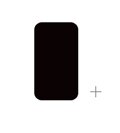
Step 2
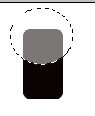
Open a new layer and with your Elliptical Marquee Tool draw a circle in the upper part of the rectangular. Fill it up with white and set the opacity to 46%.
Step 3
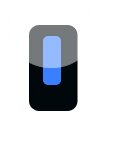
Open a new layer set the foreground color to #397fff and the Rounded Rectangular Radius to 5 px. Now draw a rectangular in the middle of the first one.
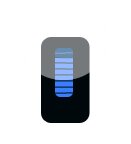
Make a new layer, select your Line Tool (U) and start cutting the blue rectangular. Make sure the sections have the same size.
Step 4
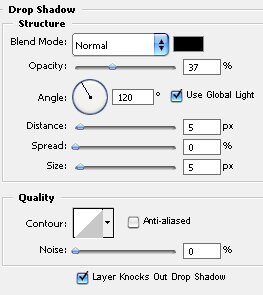
Now add some shadow to the first rectangular.
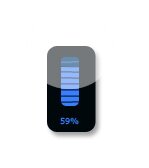
The result should be this.
ความคิดเห็น